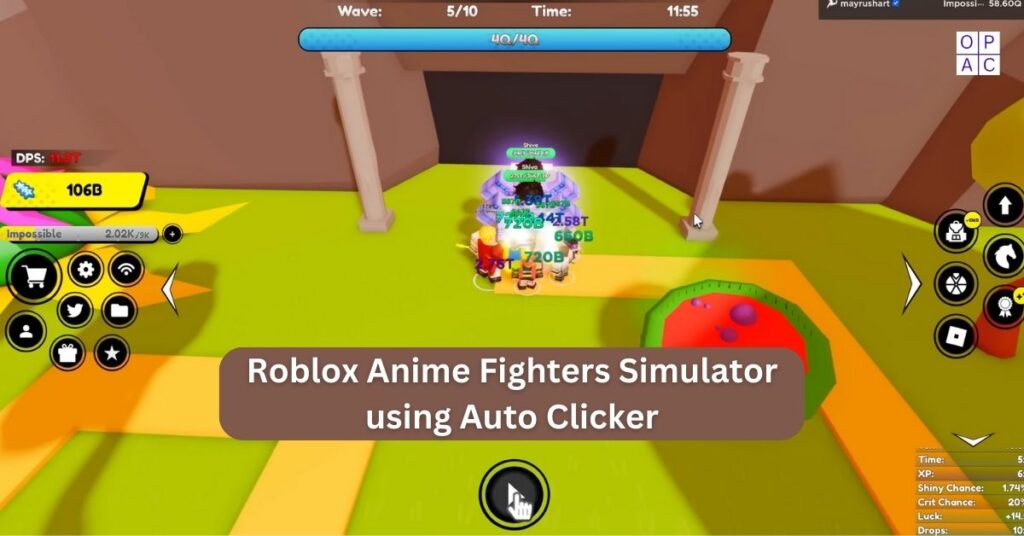
Anyone who has tapped the same spot on a phone screen a few hundred times knows how tedious it gets. Idle games, repeated page refreshes, and long sequences of identical taps wear on your thumb and your patience. An auto clicker for Android handles those taps for you.
The catch is that these apps need deep access to your phone, and the category is full of low-quality and outright fake apps. This guide explains how they work, how to set one up, and how to protect yourself while doing it.
What an Android Auto Clicker Actually Does
An auto clicker is an app that sends touch gestures to your screen on a schedule you choose. You pick where to tap, how often, and how many times. The app then repeats the tap until you stop it or it reaches your limit.
Most of them show a small floating panel over whatever app you’re using. You drag a target point onto the spot you want tapped, set the timing, and press play.
Android doesn’t let ordinary apps touch your screen on their own. These apps get around that by using the Accessibility Service, a feature built for people who need alternative ways to operate a phone. When you switch it on for an auto clicker, you are giving that app permission to perform gestures for you. This matters, and we’ll come back to it below.
Do You Need to Root Your Phone?
No. Modern auto clickers work through the Accessibility Service, so root access isn’t needed. This is a good thing, because rooting weakens your phone’s security and can break banking and payment apps.
If an app claims you must root your device just to tap a screen, treat that as a warning sign and look elsewhere.
One limit worth knowing: gesture-based tapping generally requires Android 7.0 or newer. Almost every phone in use today meets that, but very old devices may not.
Before You Install: A Safety Checklist
The Accessibility Service can see what’s on your screen, so the app you give it to should earn your trust. Run through these checks first.
- Prefer an official store listing. Google Play is the safer starting point. Sideloaded APK files from random websites are the most common source of malware in this category.
- Read recent reviews, not just the star rating. Look for comments about sudden ads, crashes, or odd behavior after an update. Ratings can be inflated; detailed complaints are harder to fake.
- Check the developer. A real developer usually has a name, a website, a privacy policy, and other apps. An empty profile is a reason to skip.
- Look at the permissions requested. An auto clicker needs Accessibility and a floating overlay. It does not need your contacts, SMS, or call logs. Anything beyond the basics deserves a question.
- Read the privacy policy. If the app has none, or it’s vague about data collection, move on.
- Remove it when finished. If you only need it for a short task, uninstall it and turn off its Accessibility permission afterward. There’s no reason to leave that access open.
If you want a wider view of how to judge any auto clicker, our guide to the best auto clickers covers the same safety principles for desktop tools, and our safety features page explains what to look for in general.
How to Set Up an Auto Clicker on Android
The exact screens vary by phone brand, but the steps are nearly the same everywhere.
- Install the app from a reliable auto clicker application source you’ve checked using the list above.
- Open the app and allow the “display over other apps” permission when asked. This lets the floating controls appear.
- Enable the Accessibility Service. Go to Settings, then Accessibility, then Installed or Downloaded apps, and switch on the auto clicker. Read the warning Android shows; it’s accurate.
- If the switch is greyed out, you’ve probably hit Android’s restricted settings, introduced in Android 13 for apps installed outside the Play Store. Open the app’s info page, tap the three-dot menu, choose “Allow restricted settings,” then return and enable the service.
- Place your target. Drag the tap point onto the button or area you want pressed.
- Set your timing (covered next).
- Press play, and press stop when finished. Test with a short run first so you can see it behaves as expected.
The Settings That Matter Most
Most apps look busy, but only a few settings change the result.
Click interval
This is the pause between taps. A shorter interval means faster tapping, but faster isn’t always better. Many apps and games can’t register taps that arrive too quickly, so extremely low values often produce missed taps or lag. Start around a few taps per second and adjust upward only if it still works reliably.
The principle is the same on desktop; our click intervals guide explains how timing values behave and how to choose them.
Tap duration
This is how long each press lasts. Some games treat a very short tap and a longer press differently, so if taps aren’t registering, lengthen the duration slightly.
Number of taps or run time
Set a limit rather than letting it run forever. A cap protects your battery and prevents the app from continuing after the task is done.
Multi-point tapping
Better apps let you place several targets and tap them in order, which is useful for menus or multi-step sequences. Name or number your points so you don’t lose track.
Swipes
Some apps record a swipe as well as taps. This helps with scrolling or drag-based games, but swipes tend to be less reliable than plain taps, so test them separately.
When It Doesn’t Work: Common Fixes
- Taps aren’t registering. Lengthen the tap duration and slow the interval. Make sure the target point sits exactly on the button, not near its edge.
- The app stops after a few minutes. Your phone’s battery optimization is probably closing it. Set the app to “Unrestricted” or “Don’t optimize” in battery settings, and lock it in your recent apps list if your phone allows it.
- The floating panel disappears. Re-check the overlay permission, then confirm the Accessibility Service is still on. Some phones switch it off after updates.
- A particular app refuses to work. Some apps, including certain banking and payment apps, detect Accessibility services and block themselves. That’s a deliberate security measure, not a fault in your auto clicker.
For desktop troubleshooting, our autoclicker troubleshooting guide lists the same types of problems with Windows-specific fixes.
Where Auto Clickers Help, and Where They Cause Trouble
Good uses
- Idle and incremental games that reward constant tapping and have no competitive element
- Refreshing a page while waiting for a status change
- Repeating a routine action in an app, such as dismissing the same prompt
- Accessibility needs, where repeated tapping is painful or difficult
Unfair uses
- Online multiplayer and competitive games. Many have rules against automation, and it looks unfair if they use the automation. Check the game’s terms before using one. If you’re curious how this plays out on PC, see our notes on Roblox and Minecraft.
- Social media actions such as mass liking or following. Platforms treat this as automated behavior and may not allow it to be used.
Battery and Performance
Constant screen activity uses power, and a floating overlay keeps a service running in the background. In long sessions you’ll notice faster battery drain and a warmer phone.
A few habits help: lower the screen brightness, keep runs short, set a tap limit, and stop the app when you’re done. If your phone becomes noticeably hot, stop and let it cool.
Apps People Commonly Use
Several apps come up often in this category, including Auto Clicker – Automatic Tap, Click Assistant, and Tapping. Features, ratings, and ad behavior change with updates, so treat any list as a starting point and run the safety checklist above on whichever you pick. We don’t rank them here because app listings change often and we’d rather you check the current reviews than rely on an outdated recommendation.
What About Windows, Mac, or iPhone?
The steps above apply to Android only. If you want a clicker for a computer, the OP Auto Clicker page covers the Windows version. The iPhone works differently because iOS restricts this kind of automation; see our iPhone and iPad guide. Chromebook users can read the Chromebook auto clicker guide.
Final Thoughts
An Android auto clicker is a simple idea with a real security trade-off. Used for the right tasks, it saves effort and protects your hands. So, choose your app carefully, grant only the permissions it needs, keep your timing settings realistic, and switch off its access when the job is finished.
Frequently Asked Questions
Is an Android auto clicker safe?
It can be, if you choose carefully. The app needs Accessibility access, which is powerful, so install only from sources you trust, review the permissions, and turn off access when you no longer need it.
Will I use one in a game?
It’s possible in online or competitive games, since many prohibit automation. Single-player and idle games are generally lower risk, but read the game’s rules first.
Does it drain the battery?
Yes, more than normal use, especially in long sessions. Setting a tap limit and stopping the app when done reduces the impact.
Why can’t I turn on the Accessibility permission?
On Android 13 and newer, apps installed outside the Play Store are restricted by default. Use “Allow restricted settings” from the app’s info page, then try again.
Can it work without the internet?
The tapping itself doesn’t need a connection. The app or game you’re tapping in may need one.
Share